

MarcR
Contributor
Dec 8, 2021 12:54 PM UTC

How to set up Parcel Services - Batch reporting

So, where do you start with Parcel Services? We’ll first describe the setup of the solution and after that the usage.

How to setup Parcel Services

Parcel Services requires Ancillary Table access like most other Market Place solutions. If you don’t have this set up yet, you can follow the steps described in the setup instructions document. Do you have other solutions running already? Then this is not required anymore.

After downloading the solution as a .zip file from the Market Place, you can import it into your application via Application -> Load/Extract. After that, the Parcel Services (OPS) will appear under OnePlace -> Dashboards, where you can create the tables and then launch the solution:
 

1.png

In addition to Dashboards and business rules, this solution also contains data management sequences to automate the distribution of your documents.

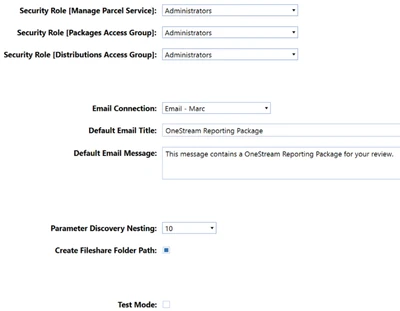
In the settings page, you can set the security roles for managing and distributing packages, the email connection and default message contents. The Parameter Discovery Nesting controls how many times the Parameter Discovery process loops. The Test Mode allows testing the solution without actually sending all email messages to your users.
 

2.png

Configuring your reporting packages


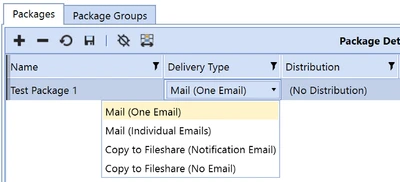
Via the Packages button you can create the packages and Groups. A Package (Group) is a list of extensible documents/ books packaged together. You can choose different delivery types for a new package:
 

3.png

The email can be zipped, and a custom Title and Message can be created.

After that, the content of the package is selected in the bottom part of the screen. You can add multiple documents:

 

4.png

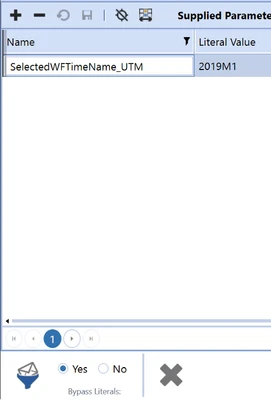
On the right, you can add required parameters both for the Package and for the selected document. Since Parcel Services doesn’t give you a pop-up when executed, literal values need to be added to the different packages. A great feature with parameters is that you can send the same report to dozens of users using different parameters, so everybody gets the same report with their own personalized data.

Parameters for a XFDocument can be manually entered or found dynamically via the Discover Parameters button:
 

5.png

For easier distribution, created Packages can be grouped via the Package Groups tab.


Via the Manage Distributions button you can create the distribution lists that can be added to a package. After creating a Distribution list, OneStream Users (or Groups) can be added and if required an alternate Email address to be used can be added.

On the right, you’ll see the members in the list (based on the users and groups added) to validate your distribution list.
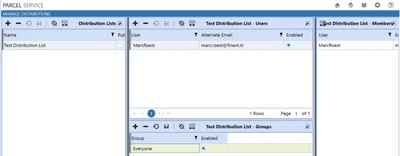
 

6.png

Now the distribution list can be added to your package created earlier.

Sending your packages reports

To run the process, there is a clear 4-step process from the home page. In the first two steps, you select first the parcel type and then the package (group). In the following two steps, you review the contents and the distribution list before you ship the package:
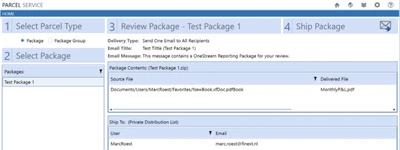
 

7.png


And the document is nicely distributed to your mailbox.

If you need to automate this process, the required (sample) PowerShell scripts are included in the solution as a starting point.

Conclusion

Parcel Services can be a great addition to your OneStream platform. If you distribute many reports or books to your users, this solution certainly is a must have. It reduces the manual work and is flexible with the use of parameters, making it feasible to send your users their ‘personal’ reports.

  • Pros of OneStream Parcel Services:
  • Easy configuration
  • Use parameters to personalize your reports/ books
  • Can be automated to run on a scheduled time

Cons of OneStream Parcel Services:

  • Added value only in specific use cases

The setup is described in detail in the documentation and the configuration is easy. Therefore, I classify this solution as Admin Configurable. Please see my earlier post about classifications.

32 replies

MarcR
MarcRAuthor
Contributor
Jan 16, 2024 6:52 AM UTC

Hi LeAnn, this is unfortunately a quite unspecific error that can happen at many places. I would advise to raise a ticket with support so they can have a look with you. Sorry i haven't had this one before so don't have any quick tips.

Newcomer
Jan 16, 2024 3:08 PM UTC

Thanks for the feedback, Marc. 

Member
Jan 16, 2024 4:24 PM UTC

LeAnnTDang if you click the ellipsis on the error message does it give you any more details? can you double check all your POV's to make sure they're all passing through to the Parcel job? If you haven't already done so, I would troubleshoot by trying to send the batch for one person instead of a distribution list and perhaps email it instead of writing it to the server path to ensure the basics are working. 

Newcomer
Jan 17, 2024 7:46 PM UTC

SxD . Thanks for the note. I tried to build a package with a simple CV/book that doesn't require any parameter prompt. I set it up with delivery type "Mail (One Email"), and still get the same error when I "Ship" the package from the "Manage Package" Page. Below is the error. 

"Summary: Error processing Data Management Step 'ShipPackage_OPS'.
Unable to execute Business Rule 'OPS_ShipPackageUsingID'.
Unable to execute Business Rule 'CV_ParamHelper'.
The given key was not present in the dictionary."

When I launch from the Home page, I got "The given key was not present in the dictionary" error, and the detail shows "Unable to execute Business Rule 'OPS_ParamHelper'." and "Unable to execute Business Rule 'CV_ParamHelper'." 

The OPS_ParamHelper and OPS_ShipPackageUsingID should be from the installation file and I don't understand why it would err out. 

LeAnnTDang_0-1705520665495.png

We're on v7.4.2. I wonder if the old Parcel Service version has compatibility issue with the v7.4.2 since there has been quite a number of hiccups with the v7.  

Thank you for the insight. 

Contributor
Mar 4, 2026 8:50 PM UTC

Did you manage to solve this?

Member
Jul 2, 2024 1:56 PM UTC

Hi,

I am trying to set up Parcel Services, but immediately after installation I was not able to go through Setup Process and getting the below error message, any help would be appreciated.

Thanks - Kishore.

Kishore_Boyd_0-1719928600236.png


Newcomer
Oct 22, 2024 5:43 PM UTC

LeAnnTDang .I am running into similar issues with Parcel Service.I would like to know how you resolved this Issue?

Newcomer
Oct 22, 2024 5:58 PM UTC

TauseefAliKhanB , I didn't find a solution for it. I gave up on installing Parcel Service for our application. I had a support ticket on this and didn't get a good answer on the issue either. I had a conversation with another OS client about this, and the issue was most likely because we're an on-prem customer. Because of that, the email/account that Parcel Service is reading does not sync with the email/account that we registered in OS security. It appears that for that client, they are a SaaS customer and the admin contacted their OS cloud support to sync email/account between Parcel Service and OS. I'm not quite sure about the specifics and have not investigated further. 

Are you an on-prem or SaaS customer? Best of luck with your implementation. 

Newcomer
Oct 22, 2024 6:07 PM UTC

LeAnnTDang I found out the Solution. Check the Workflow Profile you are in at the moment when this error happens. Check the workflow profile settings and see if the workflow profile Integration Settings contains a dashboard name. It is likely that the BR is used with that dashboard. I noticed that I was getting the Error when I am in the Planning Admin WF profile. I changed the WF profile and ran the Parcel Service it worked. Try running the Parcel Service by changing your WF profile

Newcomer
Oct 22, 2024 6:13 PM UTC

Glad to hear. I am not able to get back on the Parcel Service any time soon, but I'll definitely try this out the next time.