


How to build a Multi-Select TreeView
While building a Dashboard, you might have the need to provide a widget for the user to select a bunch of members at the same time. This can be achieved in a number of ways. If your requirements are straightforward and you don't care too much about presentation, for example, you could do it with a simple ComboBox by setting the isMultiSelect property to True:

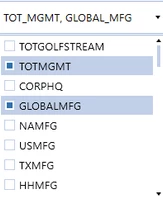
However, this approach (and similar ones based on GridView) can feel a bit unpolished; the list of elements is flat, so we don't know which member is a parent, and we are limited to basic checkboxes. What if we could provide the same functionality, but using a TreeView widget instead? And achieving more control on the overall appearance? It's OneStream, so of course we can!
(Note: this is not an exhaustive account of how TreeViews work in OneStream, but rather an advanced application of such widgets. You might want to familiarize yourself with them by checking out our previous post or looking at GolfStream examples first.)
The Demo
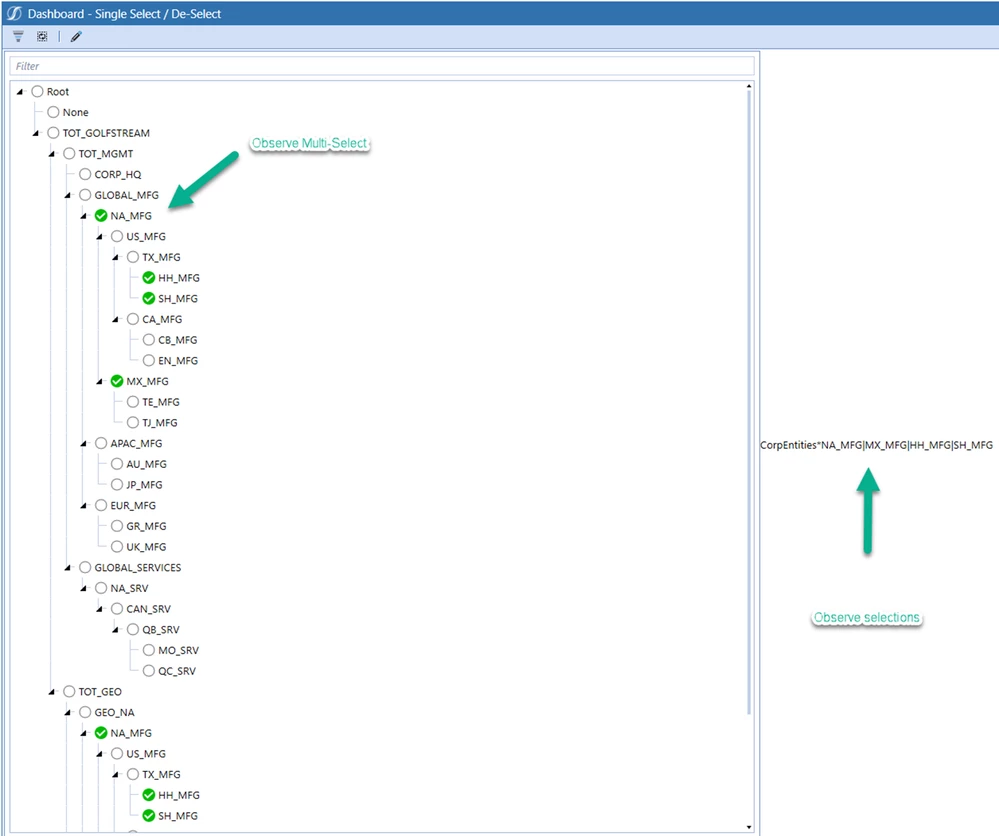
So what am I talking about? Have a look at the image below. Here we are rendering the Entity Dimension ‘CorpEntities’, and we have selected four different entities at the same time, e.g. NA_MFG, HH_MFG, SH_MFG and MX_MFG.
Initial Setup
Impressed yet? Wondering what dark wizardry is at work here? Let’s start with the setup.
First, we need a dashboard / workspace, and we need some parameters. The two parameters below have been setup as Input Value Parameters; they will be used to store our selections in memory.
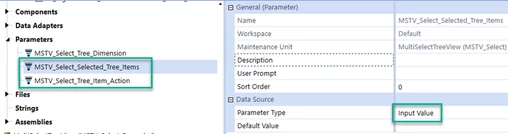
The other parameter, MSTV_Select_Tree_Dimension, is a Literal Value one to hold the dimension name e.g. ‘CorpEntities’.
We will then have a simple dashboard with two sub-dashboards: Left Content will contain the Tree View component (1a_LeftContent_MultiSelectTreeView_MSTV_Select) and Right Content will contain a Label component to catch the result (1b_RightContent_MultiSelectTreeView_MSTV_Select) using an XFBR. The latter dashboard is simply a visualization aid, you might use something else in your own projects.
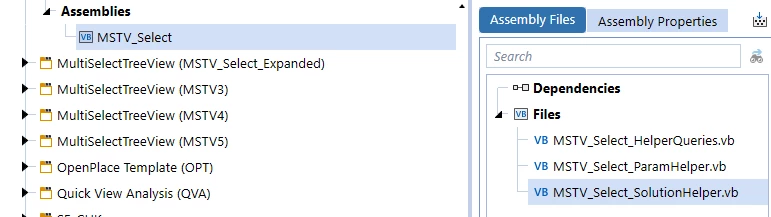
We then have a Data Adapter to feed the Tree View component, powered by a Dashboard Data Set business rule; and a couple of PNG images as Files, whice we will use to render the Tree View states Checked and Unchecked. So our Maintenance Unit will look like this:
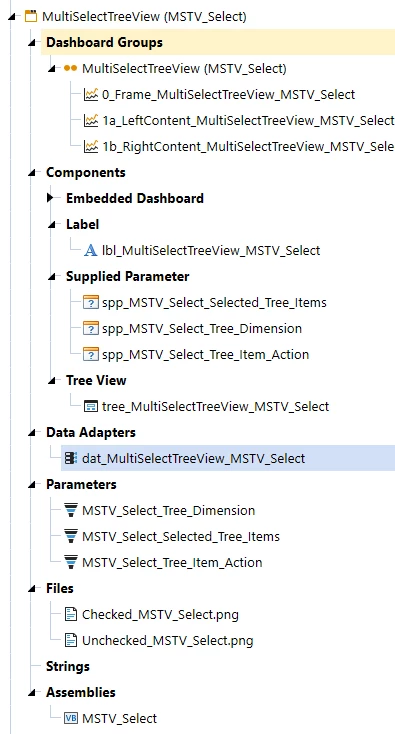
All the Business Rules that we require can be contained in a single Workspace Assembly (in version 7.3 and above).
The Method, pt.1: Dashboard Extender
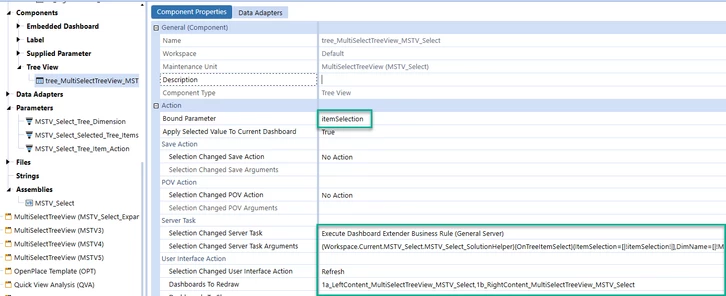
The first step of our execution will be to call a Dashboard Extender Business Rule from our Tree View component.
We also set a Bound Parameter called itemSelection and we pass that into our Dashboard Extender along with our parameters (and add some dashboard refreshes: the Tree View itself, and the display label). The resulting syntax will look like this:
{Workspace.Current.MSTV_Select.MSTV_Select_SolutionHelper}{OnTreeItemSelect}{ItemSelection=[|!itemSelection!|],DimName=[|!MSTV_Select_Tree_Dimension!|],SelectedItems=[|!MSTV_Select_Selected_Tree_Items!|]}
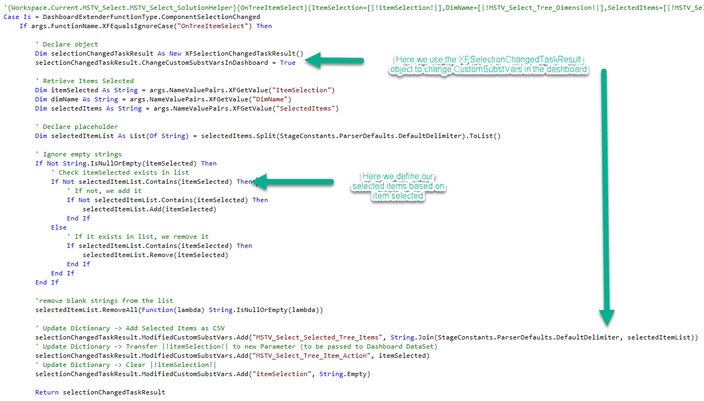
The beauty of stepping into the Dashboard Extender first is that this Business Rule (BR) is the first to execute. This enables us to set some parameter values before the Tree View is executed and refreshed. We then repeat this cycle for each dashboard component refresh or selection.
Think of the Dashboard Extender BR in this case as our Control. Here we generate a csv string of selected items based on selections, then pass them into our MSTV_Selected_Tree_Items parameter (via the updated XFSelectionChangedTaskResult modified dictionary) after each selection. This enables us to catch multiple selections in memory, by appending each selection to this parameter.
We then transfer the itemSelection variable to our MSTV_Select_Tree_Item_Action parameter and null out our bound parameter (itemSelection). This is to ensure we can Select / Deselect a member using two passes, since the Tree View component on its own does not recognise the second action or click of the same variable.
This little trick is probably the secret sauce of this little operation.
We then pass these parameters to our Tree View, as we will see.
The Method, pt.2: Dashboard Data Set
TreeViews are typically powered by Dashboard DataSet business rules, and this is what we will do here too. The important element is that this rule will execute after the Extender one has run, so we can pass to our DDS the necessary parameters (as set by the Extender) to mark elements as selected. The necessary syntax will look like this:
{Workspace.Current.MSTV_Select.MSTV_Select_HelperQueries}{GetTreeView}{DimName=[|!MSTV_Select_Tree_Dimension!|], SelectedItems=[|!MSTV_Select_Selected_Tree_Items!|], ItemAction=[|!MSTV_Select_Tree_Item_Action!|]}

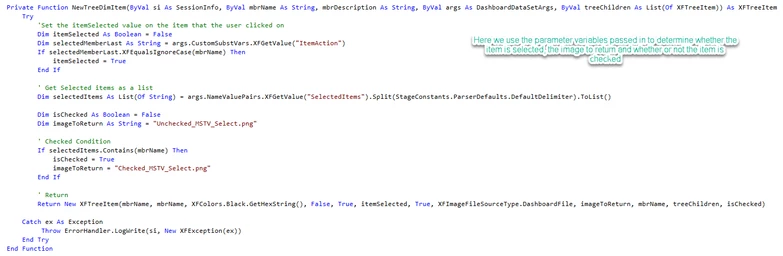
Inside our Dashboard DataSet rule, we produce XFTreeItem objects that will determine how each item is displayed. We can hence use the supplied parameters to decide whether an element will show as Checked or Unchecked, and which image should be used for each state.
The final piece of the puzzle is how to return the result to our label (added for demonstration purposes) – this represents the selections made.
The Method, pt.3: Dashboard String (XFBR)
This is the final Business Rule to execute, and this is how we are returning the result of our selections to our label and add the Dimension Name.
XFBR(Workspace.Current.MSTV_Select.MSTV_Select_ParamHelper, GetSelectedMembers, DimName=[|!MSTV_Select_Tree_Dimension!|], SelectedItems=[|!MSTV_Select_Selected_Tree_Items!|])
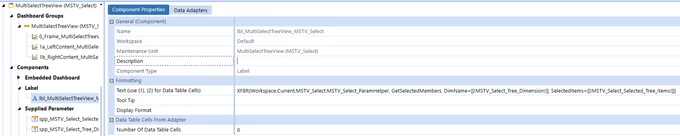
Here we take the dimension name and add a delimiter character (*), then append the result from our selections to this string using a | delimiter.
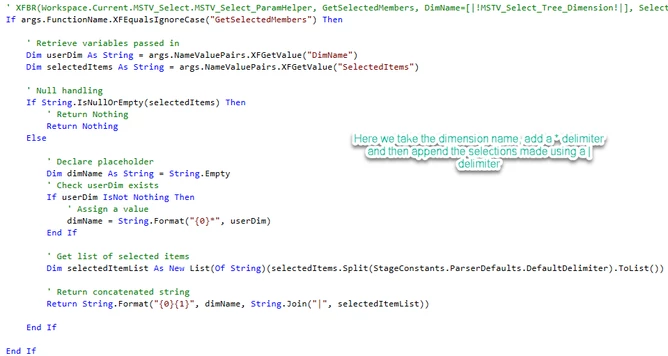
The End
Et voilà, we have achieved a custom, multi-select Tree View component!
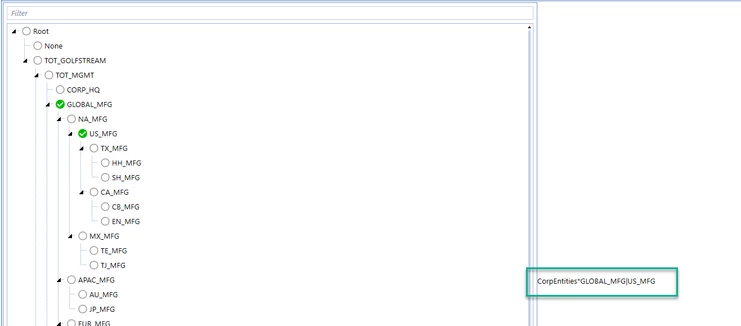
It’s also quite easy to adapt this approach to different expansions based on the same methodology, for example selecting a Parent and getting its Children or Descendants.
The use cases here are broad, since we can create a Tree View for nearly anything. Look at most OneStream features and you’ll see possibilities: Cube Views, Dashboards, Data Management, Business Rules, etc. You are now empowered (and encouraged) to take it up a level with your dashboard development and make that Tree View a Multi-Select one!