
Automating LIM Process to Cube Step
DISCLAIMER: It should be noted that the focus of this technical guide is to provide general information, considerations, and guidelines for an identified topic. It is NOT to be interpreted as the ONLY approach nor a guarantee that there will not be any issues encountered by using this approach as a customer’s requirements or application configuration may render this guidance as not applicable.In addition, statements that “we believe” and similar statements reflect our beliefs and opinions on the relevant subject. These statements are based upon information available to us as of the date of this article, and while we believe such information forms a reasonable basis for such statements, such information may be limited or incomplete, and our statements should not be read to indicate that we have conducted an exhaustive inquiry into, or review of, all potentially available relevant information. OneStream does not warrant as to the accuracy of this guidance, which is provided on an as-is basis.

Any forward-looking statements contained herein are based on information available at the time those statements are made and/or good faith beliefs and assumptions as of that time with respect to future events and are subject to risks and uncertainties that could cause actual performance or results to differ materially from those expressed in or suggested by the forward-looking statements. Considering these risks and uncertainties, the forward-looking events and circumstances discussed in this guide may not occur and actual results could differ materially from those anticipated or implied in the forward-looking statements.
VERSION: PV900 SV200
PLATFORM: 9.2.0
USE CASE: You want to automate or schedule the “Process” to Cube step for your calculated LIM plan data
PURPOSE: to provide an example that you can leverage as part of your build.
RESOLUTION: Below are the steps needed to automate the “Process” step for a specific LIM instance (e.g., Workforce Planning 1 as an example)
First, locate the “Process” button in the workspace for which you are wanting to automate the push of data to the cube. In this example, search your components for “process” and locate the button shown below:
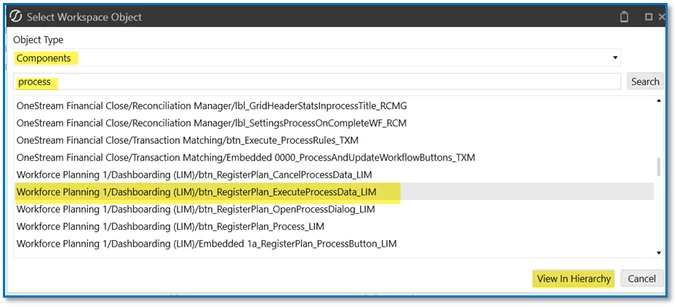
Next, go into “Selection Changed Server Task Arguments” to find the DM sequence and parameters leveraged in the out-of-the-box “Process” step:
{ExecuteWorkflow_LIM}{PlanID=|!SelectedPlanID_LIM!|, SelectedWorkflows=[|!SelectedWorkflowName_LIM!|], SelectedPeriods=[|!PlanSelectedPeriodsToProcess_LIM!|]}
Keep those 3 parameters and DM sequence name in mind as they will be referenced later.
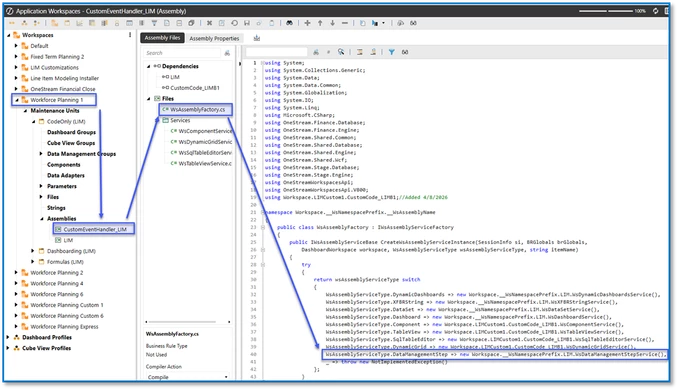
In the workspace instance for the one you are trying to automate (e.g. Workforce Planning 1) go into the custom event handler you created (see other OC post for how to set this up: LIM: Example of Setting up my Customizations Outside of LIM’s Workspace(s) for Future Upgrades | OneStream Community), e.g. Workforce Planning 1 > Code Only (LIM) > CustomEventHandler_LIM > WsAssemblyFactory.cs ensure you have the following line of code (e.g. line 40):
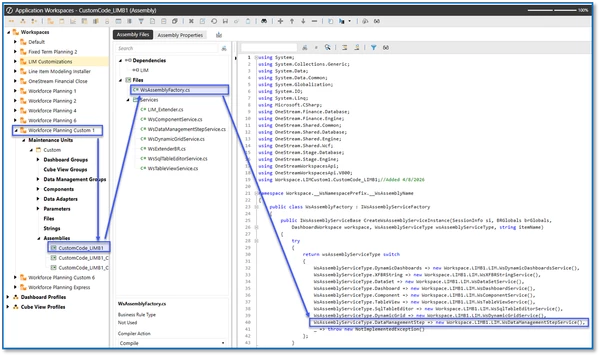
In the custom workspace you set up for your custom code (e.g. Workforce Planning Custom 1) go into the custom event handler you created (see other OC posts for how to set this up), e.g. Workforce Planning Custom 1 > Custom > CustomCode_LIMB1 > WsAssemblyFactory.cs ensure you have the following line of code (e.g. line 40):
Staying in your custom workspace, e.g. Workforce Planning Custom 1 > Custom > CustomCode_LIMB1 right click on Services in the Custom assembly and add a file. In the Source Code Type drop down, choose Extensibility Business Rule and give it a name like LIM_Extender.cs as shown below:
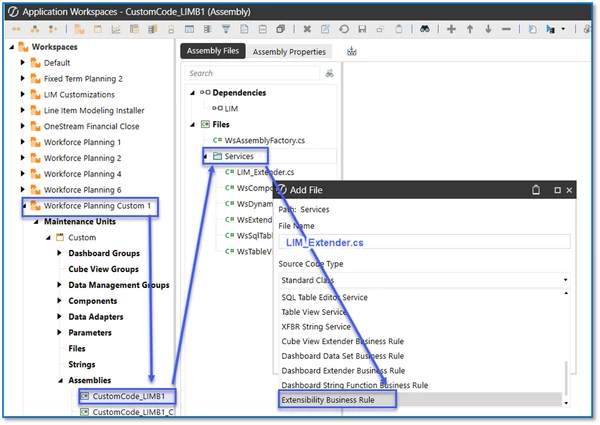
Click on that newly created LIM_Extender.cs service and in the section shown below
Case ExtenderFunctionType.ExecuteDataMgmtBusinessRuleStep:
Add the following code:
var sqlBuilder = new StringBuilder();
						string workspaceName = args.NameValuePairs.XFGetValue("workspaceName");
						string schemaName = string.Empty;
						string tableName = "XFW_LIM_Plans";
						string plnName  = args.NameValuePairs.XFGetValue("plnName");
						string tgtWorkflow  = args.NameValuePairs.XFGetValue("tgtWorkflow");
						string tgtPeriods   = args.NameValuePairs.XFGetValue("tgtPeriods");
						string tgtSequenceName = "ExecuteWorkflow_LIM"; //this is the DM sequence used in all LIM-related workspaces

						bool isSystemLevel = false;

						// Compute workspace ID ONCE (outside loops)
						Guid workspaceId = BRApi.Dashboards.Workspaces.GetWorkspaceIDFromName(si, isSystemLevel, workspaceName);
						string safePlanName = plnName.Replace("'", "''");

						switch (workspaceName)
						{
						    case "Workforce Planning 1":
						        schemaName = "limb1";
						        break;

						    case "Workforce Planning 2":
						        schemaName = "limb2";
						        break;

						    case "Workforce Planning 3":
						        schemaName = "limb3";
						        break;

							case "Workforce Planning 4":
						        schemaName = "limb4";
						        break;

						    case "Workforce Planning 5":
						        schemaName = "limb5";
						        break;

						    case "Workforce Planning 6":
						        schemaName = "limb6";
						        break;

						    default:
						        schemaName = "limb1";
						        break;
						}

						// Build SQL (dynamic table name)
						sqlBuilder.AppendLine($@"

							DECLARE @sql NVARCHAR(MAX);

							    SET @sql = N'
							        SELECT DISTINCT PlanID
							        FROM ' + QUOTENAME('{schemaName}') + '.' + QUOTENAME('{tableName}') + '
							        WHERE PlanName = ''{safePlanName}''
							    ';

							    EXEC(@sql);

						");

						// Execute SQL ONCE and CAPTURE the output (DataTable)
						DataTable planDt;
						using (DbConnInfo dbconnApp = BRApi.Database.CreateApplicationDbConnInfo(si))
						{
						    planDt = BRApi.Database.ExecuteSql(dbconnApp, sqlBuilder.ToString(), true);
						}

						// Extract PlanIDs (trim, remove empty, distinct)
						var planIds = planDt?
						    .AsEnumerable()
						    .Select(r => Convert.ToString(r["PlanID"])?.Trim())
						    .Where(pid => !string.IsNullOrEmpty(pid))
						    .Distinct(StringComparer.OrdinalIgnoreCase)
						    .ToList()
						    ?? new List<string>();

						// Parse periods (trim, remove empty, distinct)
						var periods = tgtPeriods?
								.Split(new[] { ',', '|', ';' }, StringSplitOptions.RemoveEmptyEntries)
								    .Select(p => p.Trim())
								    .Where(p => !string.IsNullOrEmpty(p))
								    .Distinct(StringComparer.OrdinalIgnoreCase)
								    .ToList()
								    ?? new List<string>();

						// Optional guardrails (prevents silent "do nothing")
						if (planIds.Count == 0 || periods.Count == 0)
						{
						    BRApi.ErrorLog.LogMessage(si, $"ExecuteWorkflow_LIM skipped: PlanIDs={planIds.Count}, Periods={periods.Count}");
						    return null; // or return obj / status based on your extender signature
						}


						// Execute DM sequence for each PlanID + Period
						foreach (var planId in planIds)
						{
						    foreach (var period in periods)
						    {
						        var limvars = new Dictionary<string, string>(3)
						        {
						            ["PlanID"] = planId,
						            ["SelectedWorkflows"] = tgtWorkflow,
						            ["SelectedPeriods"] = period
						        };

						        BRApi.Utilities.ExecuteDataMgmtSequence(
						            si,
						            workspaceId,
						            tgtSequenceName,
						            limvars
						        );
						    }
						}

						break;
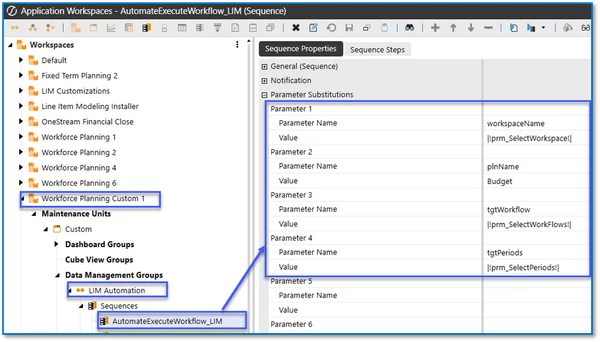
Staying in your custom workspace, e.g. Workforce Planning Custom 1 > Custom > Data Management Groups > set up a new DM sequence called AutomateExecuteWorkflow_LIM as shown below:
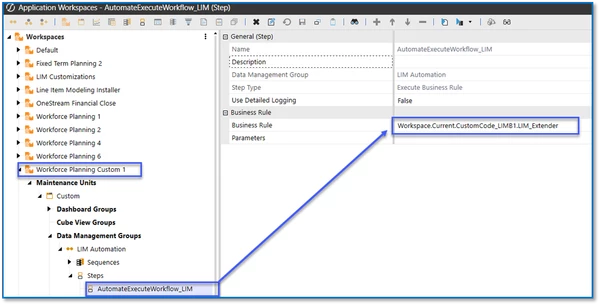
Next set up a new DM step called AutomateExecuteWorkflow_LIM and put the step into the newly created sequence below:
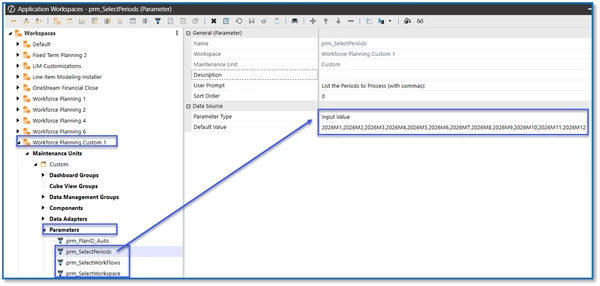
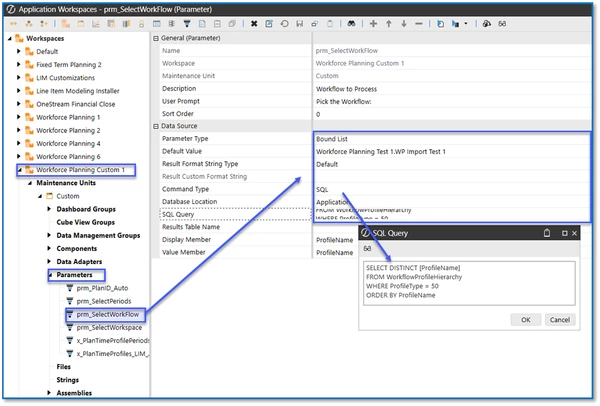
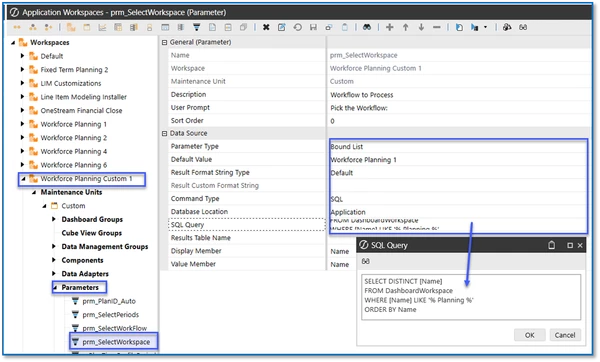
Staying in your custom workspace, e.g. Workforce Planning Custom 1 > Custom > Parameters > set up 3 new parameters called
- prm_SelectPeriods
- prm_SelectWorkFlow
- prm_SelectWorkspace
As shown below:
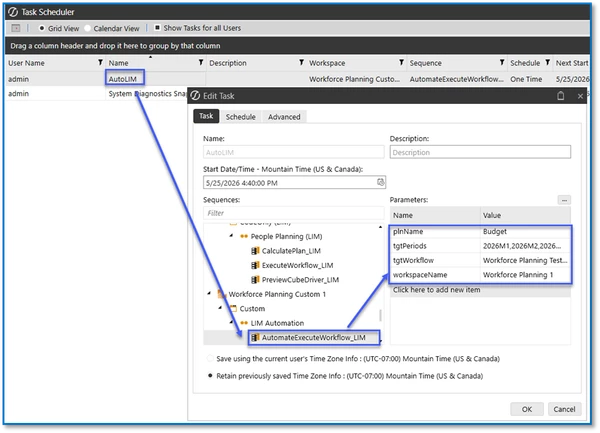
Once you have tested your DM sequence is running as desired, set up a scheduled task as follows: