

Accounting for Fiscal Year Calendars in LIM other than January to December.
DISCLAIMER: It should be noted that the focus of this technical guide is to provide general information, considerations, and guidelines for an identified topic. It is NOT to be interpreted as the ONLY approach nor a guarantee that there will not be any issues encountered by using this approach as a customer’s requirements or application configuration may render this guidance as not applicable.In addition, statements that “we believe” and similar statements reflect our beliefs and opinions on the relevant subject. These statements are based upon information available to us as of the date of this article, and while we believe such information forms a reasonable basis for such statements, such information may be limited or incomplete, and our statements should not be read to indicate that we have conducted an exhaustive inquiry into, or review of, all potentially available relevant information. OneStream does not warrant as to the accuracy of this guidance, which is provided on an as-is basis.

Any forward-looking statements contained herein are based on information available at the time those statements are made and/or good faith beliefs and assumptions as of that time with respect to future events and are subject to risks and uncertainties that could cause actual performance or results to differ materially from those expressed in or suggested by the forward-looking statements. Considering these risks and uncertainties, the forward-looking events and circumstances discussed in this guide may not occur and actual results could differ materially from those anticipated or implied in the forward-looking statements.
VERSION: PV900 SV200
PLATFORM: 9.X
PURPOSE: to provide an example that you can leverage as part of your LIM build.
RESOLUTION:
First, create the following set of 4 date fields in your register:
- StartDate = required field and will be the start date that comes in from your source data and visible to users
- EndDate = required field and will be the start date that comes in from your source data and visible to users
- StartDateOffset = Used by LIM as the “Start Date” field for calculations but will be hidden from users and populated through custom date offset code.
- EndDateOffset = Used by LIM as the “End Date” field for calculations but will be hidden from users and populated through custom date offset code

There are 3 places in which register data can be added:
- WsComponentService = File import or Direct Connect
- WsDynamicGridService = Add rows directly in dynamic grid
- WsTableViewService = Adding rows in Spreadsheet
So, you will need to add custom code to all 3 places to handle populating the date offset fields.
Below walks through the code to be added to all 3 places.
In the custom workspace you set up for your custom code (e.g. Workforce Planning Custom 1) go into the custom event handler you created (see other OC post for how to set this up: LIM: Example of Setting up my Customizations Outside of LIM’s Workspace(s) for Future Upgrades | One...), e.g. your Workforce Planning Custom 1 > Code Only (LIM) > CustomEventHandler_LIM > WsComponentService.cs file, add the following code:
private static void AfterEvent(SessionInfo si, BRGlobals brGlobals, DashboardWorkspace workspace, DashboardExtenderArgs args, XFSelectionChangedTaskResult taskResult) { // GET FUNCTION NAME FROM COMPONENT SELECTION CHANGED SERVER TASK ARGUMENTS if (args.FunctionName.XFEqualsIgnoreCase("ImportRegisterData")) { ParseDateFields(si, brGlobals, workspace, args, taskResult); } }private static void ParseDateFields(SessionInfo si, BRGlobals brGlobals, DashboardWorkspace workspace, DashboardExtenderArgs args, XFSelectionChangedTaskResult taskResult) { var sql = new StringBuilder(); sql.Append(@$" UPDATE [limb1].XFW_LIM_StageRegister SET StartDateOffset = DATEADD(MONTH, -6, StartDate), EndDateOffset = DATEADD(MONTH, -6, EndDate); "); BRApi.Database.ExecuteSql(BRApi.Database.CreateApplicationDbConnInfo(si), sql.ToString(), false); }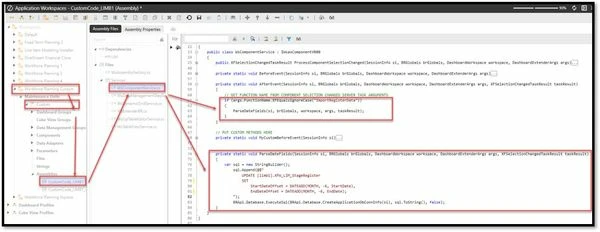
In your Workforce Planning Custom 1 > Code Only (LIM) > CustomEventHandler_LIM > WsDynamicGridService.cs file, add the following code:
private static void BeforeEvent(SessionInfo si, BRGlobals brGlobals, DashboardWorkspace workspace, DashboardDynamicGridArgs args)
        {
            // GET FUNCTION NAME FROM COMPONENT SELECTION CHANGED SERVER TASK ARGUMENTS
            if (args.Component.Name.XFEqualsIgnoreCase("dg_Register_Insert_Delete_LIM"))
            {
                ParseDateFields(si, args);
            }
        }
private static void ParseDateFields(SessionInfo si, DashboardDynamicGridArgs args) //Had to add in DashboardDynamicGridArgs args
{
if (args.SaveDataArgs != null)
{
foreach (XFEditedDataRow row in args.SaveDataArgs.EditedDataRows)
{
//if (row.InsertUpdateOrDelete == DbInsUpdateDelType.Update)
if (row.InsertUpdateOrDelete != DbInsUpdateDelType.Insert && row.InsertUpdateOrDelete != DbInsUpdateDelType.Update) continue;
{
bool StartDateParsed = DateTime.TryParse( row.ModifiedDataRow.Items.ContainsKey("Start Date") ? row.ModifiedDataRow.Items["Start Date"]?.ToString() : null, out DateTime StartDate);
bool EndDateParsed = DateTime.TryParse( row.ModifiedDataRow.Items.ContainsKey("End Date") ? row.ModifiedDataRow.Items["End Date"]?.ToString() : null, out DateTime EndDate);
int StartDayInt = 0;
int StartMonthInt = 0;
int StartYearInt = 0;
int EndDayInt = 0;
int EndMonthInt = 0;
int EndYearInt = 0;
row.ModifiedDataRow.Items["Start Date Offset"] = StartDate.AddMonths(-6);
row.ModifiedDataRow.Items["End Date Offset"] = EndDate.AddMonths(-6);
// row.ModifiedDataRow.Items["End Date Offset"] = EndDate.ToString("MM-dd-yyyy");
//if parsing succeeded, extract month and year directly from DateTime instead of manually trying to convert
if (StartDateParsed)
{
StartDayInt = StartDate.Day; // day
StartMonthInt = StartDate.Month; // month
StartYearInt = StartDate.Year; // year
row.ModifiedDataRow.Items["Start Day"] = StartDayInt;
row.ModifiedDataRow.Items["Start Month"] = StartMonthInt;
row.ModifiedDataRow.Items["Start Year"] = StartYearInt;
}
if (EndDateParsed)
{
EndDayInt = EndDate.Day; // day
EndMonthInt = EndDate.Month; // month
EndYearInt = EndDate.Year; // year
row.ModifiedDataRow.Items["End Day"] = EndDayInt;
row.ModifiedDataRow.Items["End Month"] = EndMonthInt;
row.ModifiedDataRow.Items["End Year"] = EndYearInt;
}
}
}
}
}
In your Workforce Planning Custom 1 > Code Only (LIM) > CustomEventHandler_LIM > WsTableViewService.cs file, add the following code:
private static void BeforeEvent(SessionInfo si, BRGlobals brGlobals, DashboardWorkspace workspace, string tableViewName, TableView tableView)
        {
            if (tableViewName == "RegisterEditor")
            {
                ParseDateFields(si, brGlobals, workspace, tableView);
            }
        }
private static void ParseDateFields(SessionInfo si, BRGlobals brGlobals, DashboardWorkspace workspace, TableView tableView)
{
foreach (TableViewRow tableViewRow in tableView.Rows)
{
var RegisterId = tableViewRow.Items["Register ID"]?.OriginalValue?.ToString();
if (tableViewRow.IsHeader) continue; // Skip header row
if (string.IsNullOrWhiteSpace(RegisterId)) continue; // Skip blank or whitespace-only rows
bool StartDateParsed = DateTime.TryParse( tableViewRow.Items.ContainsKey("Start Date") ?
tableViewRow.Items["Start Date"]?.Value?.ToString() : null, out DateTime StartDate);
bool EndDateParsed = DateTime.TryParse( tableViewRow.Items.ContainsKey("End Date") ?
tableViewRow.Items["End Date"]?.Value?.ToString() : null, out DateTime EndDate);
int StartDayInt = 0;
int StartMonthInt = 0;
int StartYearInt = 0;
int EndDayInt = 0;
int EndMonthInt = 0;
int EndYearInt = 0;
bool StartDateUpdate = tableViewRow.Items["Start Date"].IsDirty();
bool EndDateUpdate = tableViewRow.Items["End Date"].IsDirty();
tableViewRow.Items["Start Date Offset"].Value = StartDate.AddMonths(-6).ToString();
tableViewRow.Items["End Date Offset"].Value = EndDate.AddMonths(-6).ToString();
//if parsing succeeded, extract month and year directly from DateTime instead of manually trying to convert
if (StartDateUpdate)
tableViewRow.Items["Start Date Offset"].Value = StartDate.AddMonths(-6).ToString();
if (StartDateUpdate && StartDateParsed)
{
StartDayInt = StartDate.Day; // day
StartMonthInt = StartDate.Month; // month
StartYearInt = StartDate.Year; // year
tableViewRow.Items["Start Day"].Value = StartDayInt.ToString();
tableViewRow.Items["Start Month"].Value = StartMonthInt.ToString();
tableViewRow.Items["Start Year"].Value = StartYearInt.ToString();
}
if (EndDateUpdate)
tableViewRow.Items["End Date Offset"].Value = EndDate.AddMonths(-6).ToString();
if (EndDateUpdate && EndDateParsed)
{
EndDayInt = EndDate.Day; // day
EndMonthInt = EndDate.Month; // month
EndYearInt = EndDate.Year; // year
tableViewRow.Items["End Day"].Value = EndDayInt.ToString();
tableViewRow.Items["End Month"].Value = EndMonthInt.ToString();
tableViewRow.Items["End Year"].Value = EndYearInt.ToString();
}
}
}
In your Settings > Security > Register Columns page be sure to restrict the date offset column visibility to just administrators. This is because these fields are used to drive calculations but will confuse users if they are visible.
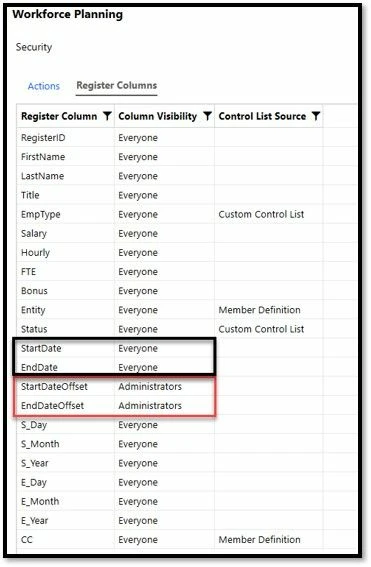
Ensure that any formulas that refer to the Start or End Date fields, do so to the StartDateOffset and EndDateOffset fields since those fields are the ones that drive the calculations behind the scenes. By setting StartDateOffset and EndDateOffset in the register as the true start and end date fields, calculations will already take this into account but if you have used any of those register fields further in formulas, you will need to revisit those to ensure they are referring to the correct date field to account for calendar differences.
When you import register data, the following should happen by example:
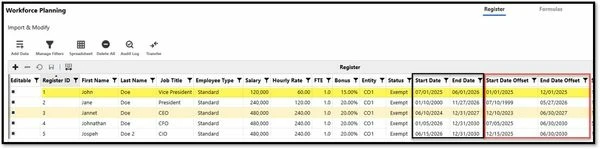
Focusing on employee ID #1, we can see the following:
- Start Date = 7/1/2025 in MM/dd/yyyy format
- End Date = 6/1/2026 in MM/dd/yyyy format
If your company is a July to June Fiscal calendar then those should appear as follows:
- Start Date = 7/1/2025 = 2025M1 in LIM
- End Date = 6/1/2026 = 2025M12 in LIM
Without the date offset logic, they will appear incorrectly as follows:
- Start Date = 7/1/2025 = 2025M7 in LIM
- End Date = 6/1/2026 = 2026M6 in LIM
To correct these dates in calculations, the following will correctly happen:
- Start Date Offset = 1/1/2025 in MM/dd/yyyy format so this will appear as 2025M1 in LIM calculated data
- End Date Offset = 12/1/2026 in MM/dd/yyyy format so this will appear as 2025M12 in LIM calculated data
When mapping data to the cube the data source should appear as follows:
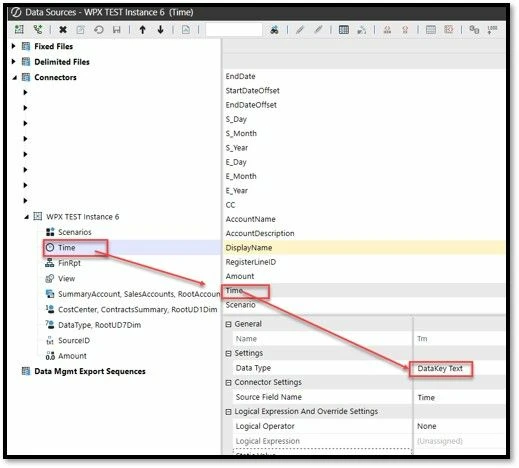
This ensures that the data appears in the correct periods within LIM (2026M1 = July 2026….2026M12 = June 2026) and when loaded to the cube.