
Newcomer
November 30, 2021
Solved

Group Columns/Excel Outline in Columns on Cube Views

  • November 30, 2021
  • 4 replies
  • 0 views

Hello:


Has anyone had any success with grouping columns in a cube view in a report linked to excel, or grouping them as they export? Of course in the data explorer version you can use the tree function and toggle the row expansion mode to get the intended effect, and in rows you have the excel outline settings you can play with. However, there doesn't seem to be a way to manage this using settings. And obviously if you format the cube view when linked them refreshed the column grouping goes away.


Interested to hear and thanks!
Best answer by aneupane

Hi James, 

I did something similar lately.

Like you mentioned, I am not able to group Column as well.

But I am able to group Rows Dynamically by leveraging 3 components

1. Row member: member.Tree [I believe member.TreeDescendants also work]

2. Use RowE1IndentLevel +   ExcelOutlineLevel in formatting

I have used following to make it dynamic

if (RowE1IndentLevel = 0) Then
ExcelOutlineLevel = 1
Else if (RowE1IndentLevel = 1) Then
ExcelOutlineLevel = 2
Else if (RowE1IndentLevel = 2) Then
ExcelOutlineLevel = 3
Else if (RowE1IndentLevel = 3) Then
ExcelOutlineLevel = 4
Else if (RowE1IndentLevel = 4) Then
ExcelOutlineLevel = 5
Else
ExcelOutlineLevel = 6
End If

3. In Default Cube Formatting

ExcelExpandedOutlineLevelOnRows = 6

ExcelMaxOutlineLevelOnRows = 6 (6 is max)

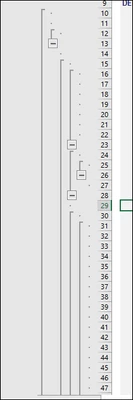
As result, this is what you get in excel. best part if this is dynamic.

Hope this helps.

aneupane_0-1638385265797.png


4 replies

aneupaneOneStream EmployeeAnswer
OneStream Employee
December 1, 2021

Hi James, 

I did something similar lately.

Like you mentioned, I am not able to group Column as well.

But I am able to group Rows Dynamically by leveraging 3 components

1. Row member: member.Tree [I believe member.TreeDescendants also work]

2. Use RowE1IndentLevel +   ExcelOutlineLevel in formatting

I have used following to make it dynamic

if (RowE1IndentLevel = 0) Then
ExcelOutlineLevel = 1
Else if (RowE1IndentLevel = 1) Then
ExcelOutlineLevel = 2
Else if (RowE1IndentLevel = 2) Then
ExcelOutlineLevel = 3
Else if (RowE1IndentLevel = 3) Then
ExcelOutlineLevel = 4
Else if (RowE1IndentLevel = 4) Then
ExcelOutlineLevel = 5
Else
ExcelOutlineLevel = 6
End If

3. In Default Cube Formatting

ExcelExpandedOutlineLevelOnRows = 6

ExcelMaxOutlineLevelOnRows = 6 (6 is max)

As result, this is what you get in excel. best part if this is dynamic.

Hope this helps.

aneupane_0-1638385265797.png


Newcomer
December 1, 2021

That's pretty cool. So if your tree structures go down to six levels, you can dynamically group your tree structures leveraging the hierarchy within the dimension itself. Is that the intended effect?

OneStream Employee
December 1, 2021

That's correct.....the indent level is picked from hierarchy indentation (provided by OS when .Tree is used). And we are using the indent value to generate the excel ExcelOutlineLevel.

OneStream Employee
December 1, 2021

ExcelExpandedOutlineLevelOnRows = 6 controls what level to show when cubeview is open.

If ExcelExpandedOutlineLevelOnRows = 1; cubeview opens with Level 1 shown and others compressed like shown below.

aneupane_0-1638386202534.png


Member
May 25, 2022

This is great.  Question - there is no way to pull the tree reversed?  I know I can do tree decedents reversed to get the desired excel grouping (totals beneath), but that doesn't allow for me to collapse the tree in the client/app.  Any suggestions? 

Contributor
January 17, 2023

we are using but see this wierd issue with .Tree rows. Last row does not ge grouped properly. has anyone seen it? is there any workaround? 

Contributor
January 17, 2023

Ashok_1-1673982193515.png


example where it does not group last row properly. 

Veteran
December 12, 2023

Hi JamesKirkby 

Appreciate this is an old post, but I've been struggling to get the outline's between excel and cube views to work properly and came across this.

May have not been possible back then, but you can group columns in a similar way to grouping rows.

Either manually apply the outline level to the Header Format of each column: E.g. 'ExcelOutlineLevelCol = 2'

Or apply some logic like the ones mentioned below: "If (ColE1IndentLevel = 1) Then ExcelOutlineLevelCol = 2...."

Another option that you could follow is to apply a naming convention to your columns and then apply something like this:

If (ColName StartsWith 'C1_') Then
    ExcelOutlineLevelCol = 1,
If (ColName StartsWith 'C2_') Then
    ExcelOutlineLevelCol = 2,
End if

Then you just need to set the following on the Default Header Format of your cube view:

ExcelExpandedOutlineLevelOnCols = 1,
ExcelMaxOutlineLevelOnCols = 6,