
Excel Addin TIP: To customize your OneStream Ribbon - Separate button Save Worksheet and Refresh
How to customize the OneStream Excel Addin Ribbon.
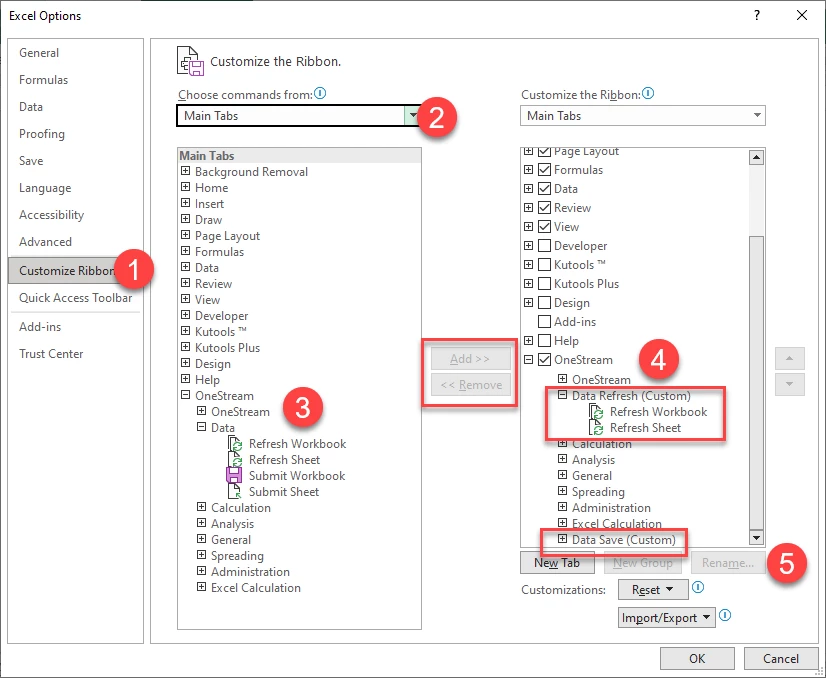
- In Excel, go to File > Options
- Select Customize Ribbon
- Select Main
- Select the OneStream Tab on the left – that is the source of all the buttons
- Select the Onestream Ribbon on the right – that is your target customization
- Move the buttons you need from left to right. You can create groups for your menu too.
If you want to separate the Save and Refresh, you first need to Remove it and then recreate it. Like shown in the screen above. You can then create a ribbon like below where I separated the Data Refresh vs Data Save. Unfortunately each user has to do that.
