Newcomer
April 18, 2022
Solved

Addin - Separate Data tab to have Refresh and Submit in different tabs

  • April 18, 2022
  • 3 replies
  • 0 views

Hello, 

We are using the Excel - Addin and made some templates to work better with OneStream. It worked great, however we found that the users sometimes have the error of clicking "Submit Workbook" instead of "Refresh Sheet".

2022-04-18 18_00_39-Data- Excel.png

 We tried to customize the ribbon to separate them but it is not possible because the Refresh and Submit button are in the same tab ("Data").
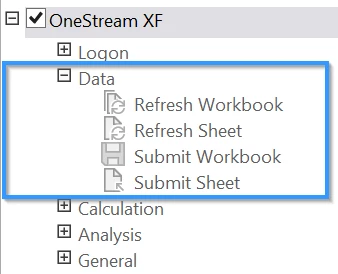
NunoGarciaRamos_0-1650298041047.png

Is there a way to modify it? Is it a common mistake?

Thanks for the attention and best regards,
 

Best answer by PeterFu

Hi Nuno,


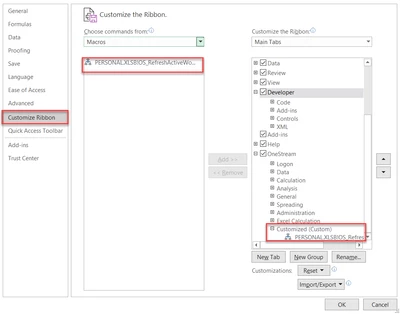
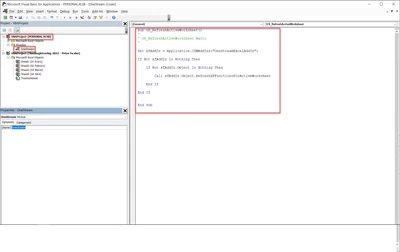
You can create your own button and add it to the Onestream Tab.  I just did  a quick and dirty to show you. Create the macro for OneStream function first, then add the macro to the OneStream tab. See print screens below. I tested it and it works for me. I hope you get this to work. It's a nice feature that can be useful sometimes when end-users use a lot of Exel 🙂

1. Create the Macro - To refresh the Active Worksheet

PeterFu_1-1650357901757.png

2. Add it to the OneStream tab - Under Options and then Customize Ribbon

First create a New Group and then Rename it to the name you want (in my case Customized). Then add the macro under your new group and save it.

PeterFu_2-1650358088842.png

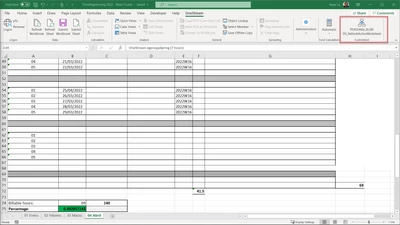
3. The result- Clicking on the new button will refresh the active worksheet

PeterFu_0-1650357882277.png


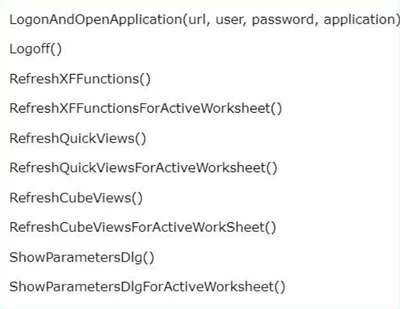
Here are the other macro syntaxes:

PeterFu_3-1650358379147.png

From 6.6.0:  triggering data submission of XFSetCells with an Excel macro is now possible. The new VBA function is 'SubmitSetXFFuntions'.

Peter

3 replies

PeterFuAnswer
Newcomer
April 19, 2022

Hi Nuno,


You can create your own button and add it to the Onestream Tab.  I just did  a quick and dirty to show you. Create the macro for OneStream function first, then add the macro to the OneStream tab. See print screens below. I tested it and it works for me. I hope you get this to work. It's a nice feature that can be useful sometimes when end-users use a lot of Exel 🙂

1. Create the Macro - To refresh the Active Worksheet

PeterFu_1-1650357901757.png

2. Add it to the OneStream tab - Under Options and then Customize Ribbon

First create a New Group and then Rename it to the name you want (in my case Customized). Then add the macro under your new group and save it.

PeterFu_2-1650358088842.png

3. The result- Clicking on the new button will refresh the active worksheet

PeterFu_0-1650357882277.png


Here are the other macro syntaxes:

PeterFu_3-1650358379147.png

From 6.6.0:  triggering data submission of XFSetCells with an Excel macro is now possible. The new VBA function is 'SubmitSetXFFuntions'.

Peter

Newcomer
April 19, 2022

Hi Nuno,

You can also choose an icon (the same as OneStream uses is available) and give it the name you want. Then it looks a bit better.

PeterFu_0-1650359646185.png


Peter


aricgresko
Veteran
April 19, 2022

A far less technical option compared to Peter's reply would be to consider training user's to have "Refresh Sheet" as an icon on the QAT (quick access toolbar)?  I personally have my Refresh Sheet icon in the first position on the QAT so I can hotkey "alt 1" to refresh.  Then if they need to Submit Sheet/Workbook, they would click the button. 

It could drive the mindset of Refresh = keyboard hotkeys and Submit = click button. 

OS QAT.png

Newcomer
April 7, 2023

Hello Nuno,

it is possible to create custom groups on ribbon tab. Please see the screenshot below.

Jarek_Sadowski_0-1680869132535.png

Kudos for PeterFu as he inspired me with his solution

Kind regards
Jarek