
Member
March 15, 2022
Solved

Importing data for multiple time periods

  • March 15, 2022
  • 2 replies
  • 0 views

How can I import data for multiple time period all in one go? I was told that its possible. But wondering what settings do I need to change in order to do that.

I tried using "Replace All Time" but the Time is set to "Current".  I'm uploading a excel base file. Any guidance on this will be appreciated. 
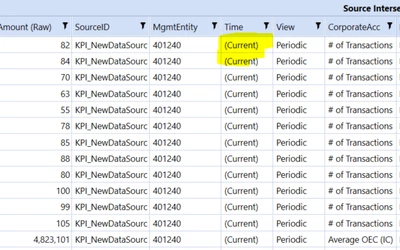
Mustafa_A_0-1647305732360.png


Best answer by Avatar-Roku

Here is the solution if anyone finds this posts and curious to know.

I managed to load multiple period data in same workflow. I needed to change my Transformation Rule (Time) and change the Data Source (Time) to Stored Key Value.

Once completed, refresh, and load the file in any empty period for that year. Lastly, Import > Validate > Load Cube

2 replies

Member
March 15, 2022

Look for matrix load, and that should let you load more than 1 data column

Member
March 15, 2022

I believe you're referencing that within Data Sources? 

The dimension I was working with was "Time" so I didn't see within the drop down menu. 

Member
March 15, 2022

How about this?

ckattookaran_0-1647357002816.png

Did you define the data structure type?

Avatar-RokuAuthorAnswer
Member
March 15, 2022

Here is the solution if anyone finds this posts and curious to know.

I managed to load multiple period data in same workflow. I needed to change my Transformation Rule (Time) and change the Data Source (Time) to Stored Key Value.

Once completed, refresh, and load the file in any empty period for that year. Lastly, Import > Validate > Load Cube

Member
March 15, 2022

Oh, so your file is not going by columns, you have that in rows itself. Keep in mind when you do that, the time period is still dictated by your workflow time. It'll load to other time periods, however, you'll have to go to the next time period to perform a validate->load cube from those ones.